
This Document describes how to achieve a Non photo realistic shading effect in Maya, it also serve as a documentation to nprs.mel script. You can get the script here or on www.highend3d.com via this link (look for Non Photo Realistic Shading v0.5)
.:[Introduction]:.
The non photo realistic shading effect here looks like the image below,
it works in Maya by using a simple shading network, it can be setup easily
via a script (nprs.mel) or manually. This doc deals very much on how to
use the shading network produced by nprs script. Its very easy to work
with and very fast to get the result, and I hope you have fun reading
this as me writing it :)
Often working with 3D graphics the real physical shading models can be quite difficult to use for an artist from a traditional 2D background, say if I wish to color kelivina's(the girl below) skin in 2D, all I need to do is chose the correct color I have in mind and paint. In 3D however despite the texture/color I have chose for her skin the shading models I use and the lights in the scene determines very much the end result, and often it doesn't look like the color you had in mind, no matter how much tweeking....it can be very frustrating at times, to have a skin tone I need a skin shader, leather needs a leather shader etc. etc. So why can't I have one shader that describes what I what in a image, just like how I work in 2D? Well, nprs works very much like the 2D approach.
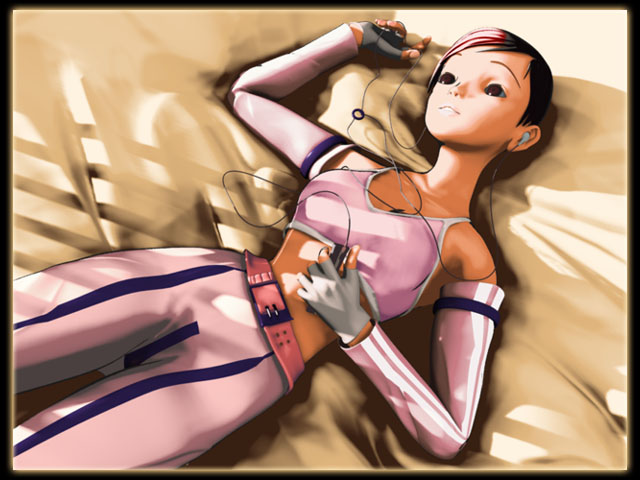
Some info on the image above:
* There's no file texture involved, 99% of
the image use nprs.
* Very fast to render, under 5 min on today's average machine.
* Using standard Maya render, no raytrace.
.:[Part1 before
getting started]:.
There's one important rule when working with nprs, you'll need to
have a uniform light intensity across your scene, for example I have 3
light set up and all my light's intensity add up to 1.00
So if I want to add 10 lights later I'll need to adjust them so
they still adds up to 1.00, otherwise objects
shaded with nprs may appear over exposed. You may say how do I make object
appear more bright? You adjust the colors in the nprs via a ramp(later
on this) You can just have one light in your scene and still very good.
.:[Part2
install and execute nprs]:.
To get nprs script work its easy,
just copy the nprs.mel file to your Maya scripts directory (e.g..
C:\Documents and Settings\yinako\My Documents\Maya\4.0\scripts)
yinako is my user name. To use the script just type
nprs at the Maya command line and press Enter or run it from the
script editor. You'll get a window like below.
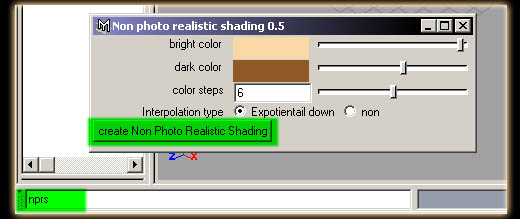
I'll explain the sliders briefly here:
bright color >> the brightest possible
color on your shaded object
dark color >> darkest possible color
on your shaded object, often you don't want it to be black...otherwise
its not so interesting :)
color steps >> the number of overall
colors from bright color to dark color.(Later on this)
interpolation type >> non give a cell
shaded look, Expotiential down have softer look between color boundaries.
Now just click on create
Non Photo Realistic Shading to get a shading network created, so
every time you want a nprs you'll need to type it on the command line.
.:[Part3 working
with nprs]:.
Now go to the hypershade select the shader
you just made and view its up down stream connections, it should look
like below.
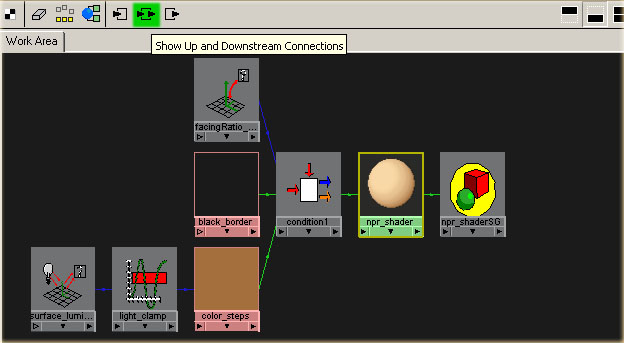
The script only creates a shading network to begin with, there's much adjustment later on. Double click the color_steps ramp, this color ramp is at the heart of nprs, and how you work with it. Here's how it looks
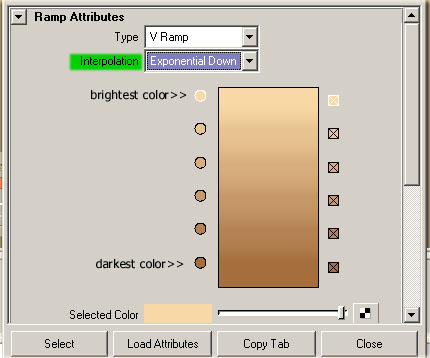
Here you can see there's 6 "color steps", the brightest color are always on top of the ramp, and the darkest color the lowest part of the ramp, changing the position of these give how much light is give to a particular color. Assign the npr_shader to a object, below I have the default setting of nprs assigned to Kelivina's bra. I have setup one light in the scene below with intensity 1.00. Notice the "color steps" form light to dark, these color steps corresponds to the ramp, so the color and positions on the ramp directly controls how much color and what particular color fall on the object. No matter how dark your scene is you'll never get black, but the darkest color for that object, which is yellowish brown here. Same applies to the brightest color too.
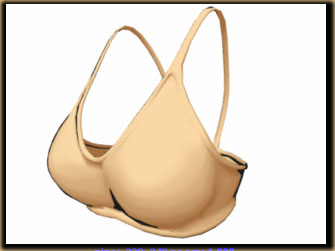
Also notice the colors between the brightest and darkest are interpolated colors in between, this only give you a nice smooth shading, but like fine art you often don't want a perfect gradient, it looks too CG-ish, so you often adjust the color in between them. And the positions among them on the color ramp. A good way to adjust the color ramp is to use IPR in Maya and change the interpolation to non, to give that cell shaded look, which clearly defines where the boundary between you colors are. Now you can tweak a hell lot here. Of course you can add and delete "color steps" as you see fit to your work.
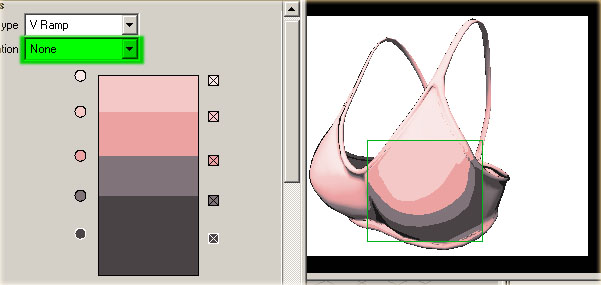
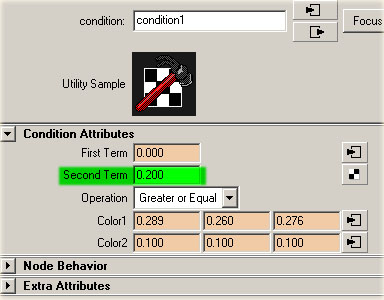
I have deleted some of the "color steps", and give a dark purple for darkest color. Too much "color steps" can look too smooth of a shading, unless you are working on much higher res image which more color step can be distinguished. You'll also notice there's a dark border around the object if you don't want them just locate the condition node connected to the npr_shader and change the second term to 0.00. If you want the outline to be more fine you'll need to increase the mesh resolution, its the facing ratio method, cheap and fast, no comments there :)
.:[Part4
Tips]:.
Now you know how to work the ramp, there's not much to it, very simple
actually. Since now you colors appears exactly how you wish to appear
in the scene, you can actually get colors from other sources. Like photos
or mangas(for me :), even though these sources are already lit, it doesn't
matter to nprs, cause light in Maya can't change the color of your objects
anymore. Here below I detach the color picker and go get some skin tones
:)
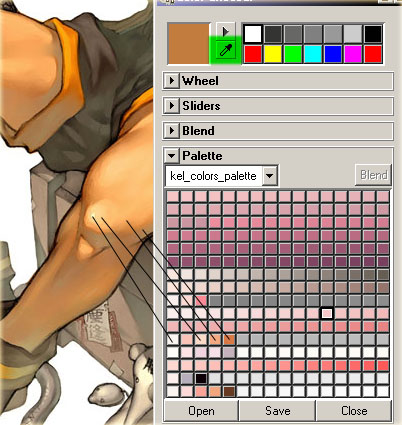
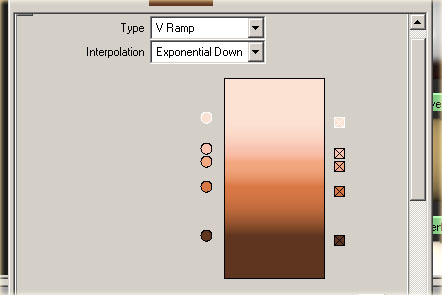
Here below I also have kelivina's finall skin color ramp, the positions and color doesn't have to be nicely interpolated. Notice there pink, orange, browns, it make the image look much more interesting that way. And this is what nprs is all about :)
.:[Conclusion]:.
So that's all, not much to say really, simple and easy to work with. I
know there are many short comings with the current nprs I'm working on.
I have considered future improvements and shading this way, here's are
what's for the better:
* specular(hard ones too :)
* file textures
* paint strokes along color boundaries
I haven't got to working on them yet, but If I ever want to improve on nprs those will be the first thing on mind, and of course if you know how to implement them I'll be god damn glad to hear it :) Oh yeah one last note nprs was originally called manga shader :) because that was the original idea behind it.
All rants, comments, suggestions,
bugs email to yinako_minako@hotmail.com
Yinako minako © July 16, 2002